How to Lock an Excel File from Being Edited by Others
If other people need to view an Excel workbook without freely changing it, the right setting depends on what you want to protect: the whole file, workbook structure, a worksheet, or selected cells. This guide separates those controls so you can choose the least restrictive option that still protects your work.
It also explains what “locked for editing” errors mean in shared workbooks, how password-based file encryption differs from sheet protection, and where stronger encrypted storage makes sense for sensitive Excel files.
To stop ordinary edits while keeping a workbook viewable, protect the relevant sheet or workbook structure and leave only the cells people should change unlocked. If you need to prevent unauthorized opening, use Excel’s file-level password encryption instead. For shared Microsoft 365 files, permissions and co-authoring settings often work better than forcing a single-editor lock.

What “locking an Excel file for editing” can mean
Excel has several protection layers, and they solve different problems. A workbook can be read-only without being secret. A protected sheet can stop people changing formulas while still letting them view every value. Workbook-structure protection can stop sheet tabs being added, deleted, renamed, moved, hidden, or unhidden. File-level encryption goes further by requiring a password before the workbook can be opened.
Choose restrictions based on what collaborators should still be able to do
If the goal is to prevent accidental changes, worksheet protection or controlled editable ranges are usually enough. If the goal is to preserve workbook layout, protect the workbook structure. If recipients only need to read the file, use read-only behavior or sharing permissions.
These controls are about editing workflow. They should not automatically be treated as confidentiality controls.
Use file encryption when the workbook must not open without authorization
Excel’s file-level password option encrypts the workbook and requires the password before access. This is a different security boundary from sheet or structure protection. For especially sensitive workbooks, keeping the Excel file inside a separate encrypted container can add another layer around the file itself.
No password setting prevents an authorized viewer from photographing a screen or manually retyping visible information. If control after viewing matters, combine technical restrictions with access policy and appropriate data handling rules.
How to Lock an Excel File for Editing
How to Lock Excel File for Editing
For a workbook people can open but should not freely change, use worksheet protection for cells and formulas, workbook protection for sheet structure, or read-only/share permissions for the whole file. Choose the narrowest control that matches the job.
How to Lock Excel File from Editing
If recipients should only view the workbook, make it read-only or give them view-only cloud permissions. If only part of the workbook should be fixed, unlock the input cells first and then protect the worksheet.
How to Unlock Excel File Locked for Editing
If the workbook says it is locked by you, close Excel on every device, wait for the service to release the session, and reopen it. If another person owns the edit session, ask them to close or check in the file. Do not bypass another user’s access controls.
Excel File is Locked for Editing By Me
A stale session, another device, an app crash, unsupported co-authoring setup, or a checked-out SharePoint file can make Excel think you still have the file open. Start with non-destructive checks before changing protection settings.
Requirements and what you need before starting
Make a backup copy of any important workbook before changing passwords or protection settings. Confirm whether the file is stored locally, on a network share, or in OneDrive or SharePoint, because sharing behavior changes what “locked” means.
- Know whether you need view-only access, selective editing, structure protection, or a password to open the file.
- Confirm that you are the owner or an authorized editor before removing or changing protection.
- For collaborative workbooks, identify whether your team relies on Microsoft 365 co-authoring.
- Store any new password in a secure password manager or approved organizational credential store.
- Keep an unmodified backup until you have tested the protected copy from a second account or device.
How to Lock an Excel File for Editing
There is no single Excel lock that is best for every situation. The methods below move from light editing controls to stronger access restrictions.
Make an Excel File Read-Only for Others
Difficulty: easy Setup: about 1 minute Security: low
Read-only behavior is useful when the main risk is accidental editing. It signals that the workbook should be viewed rather than changed, but it should not be treated as a strong security control if the recipient already has write access.
- Open the workbook.
Work from a backup if the file is important. - Choose the read-only option available in your Excel version.
Use the file setting that recommends or defaults to read-only opening. - Save, close, and reopen the file.
Confirm that Excel presents the intended behavior.
- Good fit: review copies and low-risk collaboration.
- Tradeoff: users with write permission may still save an editable copy or clear the state.
Lock Specific Cells in Excel to Prevent Editing
Difficulty: moderate Setup: 3 to 8 minutes Security: edit control
Worksheet protection is the best native option when people should enter data in some cells but must not overwrite formulas, labels, totals, or protected ranges. Cells are marked as locked by default, but that setting only takes effect after you protect the sheet.
- Select the cells users should be allowed to edit.
Open Format Cells, go to Protection, and clear the Locked setting for those input cells. - Choose Review → Protect Sheet.
Select which actions users can still perform. - Add a password if appropriate.
Use one when you want to stop casual removal of the sheet protection. - Test an input cell and a protected cell.
The input cell should remain editable while protected formulas or ranges should reject changes.
Password protect a tab in excel
Excel protects the worksheet represented by a tab. Apply Protect Sheet to that worksheet, then decide which actions are allowed. This can prevent edits within that tab, but the sheet remains viewable unless access is controlled at another layer.
Password protect a column in excel
Keep the target column locked, unlock the cells users may change elsewhere, and then protect the sheet. Excel does not assign a separate independent password to a column.
Password protect a sheet in excel from viewing
Sheet protection does not securely conceal visible data. If a worksheet’s contents must be confidential, use file-level access control or an encrypted container.
Protect workbook vs protect sheet in Excel
Difficulty: easy Setup: 2 minutes Security: structure control
Protect Workbook is aimed at the workbook’s structure. It can stop users from adding, moving, deleting, renaming, hiding, or unhiding worksheets. It does not replace worksheet protection for cell-level rules and does not replace file encryption for confidentiality.
- Open the Review tab.
Select Protect Workbook. - Protect the workbook structure.
Set a password if your workflow requires one. - Try renaming or moving a sheet.
The structural action should be blocked while ordinary cell editing remains governed by each sheet’s settings.
Lock Excel File for Opening
Difficulty: easy Setup: 2 minutes Security: strong with a strong password
If the workbook itself must not open without a password, use Excel’s file-level encryption rather than worksheet protection. In current desktop Excel for Windows, the common route is File → Info → Protect Workbook → Encrypt with Password.
- Open File → Info.
Select Protect Workbook. - Choose Encrypt with Password.
Enter a long, unique password and confirm it. - Save and close the workbook.
The setting is not meaningfully tested until you close the file. - Reopen it.
Confirm that the workbook will not open until the correct password is supplied.
Excel mark as final vs password protection
Mark as Final is a workflow signal that discourages editing and may open the workbook in a read-only state. It is not a substitute for permissions, sheet protection, or encryption. Use it to communicate status, not to secure sensitive data.
Why Document Password Protection Is Not the Same as Encryption
Excel uses different mechanisms for different protection layers. A password that protects sheet behavior is not equivalent to encrypting the workbook file. The table below is a practical distinction, not a claim that every historical Excel format uses the same cryptographic profile.
| Protection layer | What it controls | Cryptographic role | Best use | Key limitation |
|---|---|---|---|---|
| Read-only / Mark as Final | Editing intent | Not encryption | Review copies | Authorized users can often create editable copies |
| Worksheet protection | Cell and sheet actions | Not a confidentiality boundary | Protect formulas and fixed cells | Workbook contents remain visible |
| Workbook structure protection | Sheet structure | Not file encryption | Preserve sheet layout | Does not stop reading data |
| File-level password encryption | Opening the workbook | Encrypted Office fileAES-based modern formats | Confidential workbooks | Password loss can mean permanent loss of access |
| Encrypted container around workbook | Stored file access | Separate encryption layer | Sensitive local or synced storage | Requires separate software and disciplined workflow |
Permissions Password vs Open Password — Explained
An open password is intended to prevent the workbook from opening without the credential. A modify or permissions-style password is intended to separate read-only access from editing rights where the Excel version and workflow support it. Decide whether you are controlling access to the content or merely what an already-authorized viewer may change.
Overview of Excel encryption standards: older RC4-era files vs modern AES-based protection
Historical Office formats and legacy protection methods can use older cryptography. Modern Office Open XML password encryption is based on the Office encryption specification and supports AES. For a new sensitive workbook, use a current Excel format and current Office version instead of preserving an old binary workbook simply because it already has a password.

Compare Excel editing and access controls
| Method | Difficulty | Security | Cost | Best for | Limitations |
|---|---|---|---|---|---|
| Read-only / Mark as Final | Easy | Low | Included | ReviewAccidental edits | Not encryption |
| Protect Sheet | Moderate | Editing control | Included | FormulasInput ranges | Contents visible |
| Protect Workbook | Easy | Structure control | Included | Sheet structure | Not cell security |
| Encrypt with Password | Easy | High with strong password | Included with Excel | Confidential files | Password recovery riskCan hinder co-authoring |
| Microsoft 365 view-only permissions | Easy | Account-based | Plan dependent | Shared files | Depends on tenant policy |
| Separate encrypted container | Moderate | High when well implemented | Free / paid options | Stored sensitive workbooks | Separate appNot a co-authoring replacement |
| Verdict: use native Excel controls for editing behavior. Use file-level encryption or a separate encrypted container when confidentiality is the requirement. For live collaboration, use permissions and co-authoring rather than trying to turn every shared workbook into a single-editor file. | |||||

Unlock Excel File Locked for Editing by Yourself
A locked-for-editing message is often a collaboration or session problem. The safest approach is to preserve the workbook and clear the legitimate session issue rather than trying to defeat file protection.
| Problem | Likely cause | Safe fix |
|---|---|---|
| Excel file is locked for editing by me | The workbook is still open on another device or a stale session remains. | Close Excel everywhere you are signed in, wait a few minutes, then reopen the workbook. |
| Excel file locked for editing but not open | Previous app crash, sync delay, or server state has not cleared. | Restart Excel or the device, allow the sync service to catch up, then try again. |
| Locked for editing by another user | Someone has an exclusive session, older Excel version, or checkout. | Ask the person to close or check in the workbook, or use read-only mode until it is available. |
| Everyone gets a lock instead of co-authoring | Unsupported Excel version, location, format, or workbook feature. | Use a supported Microsoft 365 Excel version and store the workbook in OneDrive or SharePoint in a supported format. |
| Cannot edit protected cells | The worksheet is intentionally protected. | If authorized, use Review → Unprotect Sheet and the legitimate password, or ask the owner to change the editable range. |
| Forgot file password | The workbook is encrypted and you do not have the credential. | Check approved password records, backups, and the file owner. Do not use bypass tools on files you are not authorized to access. |
| SharePoint file requires checkout | Library policy enforces exclusive editing. | Check the file in when finished or ask the site owner whether checkout is still required. |
| Recipient cannot open a Folder Lock-shared Excel workbook | The encrypted-sharing workflow requires Folder Lock, a registered account, and the required cloud-service access. | Confirm the recipient is using Folder Lock with their own registered account and that both sides are using the intended cloud Locker workflow. Do not send your master password as a workaround. |
| The workbook is visible after a Locker is decrypted | That is the working state: the protected storage has been made accessible so Excel can use the file. | Finish the edit session, close the workbook, secure the Locker again, and remove any unprotected duplicate that was created outside the Locker. |

How to verify your Excel lock worked
Verification checklist
0 of 5 completed
What success looks like
- Read-only users can open but are not granted normal edit rights.
- Protected cells reject changes while intended input cells remain usable.
- Workbook structure actions are blocked when structure protection is enabled.
- Encrypted files require the password after the workbook is fully closed.
- Cloud permissions match the people who should view or edit.
Common Excel protection mistakes and how to avoid them
Treating worksheet protection as encryption
Worksheet protection is an editing control. If someone must not see the data at all, use file-level access control or encryption.
Protecting every cell before identifying input areas
Most worksheets start with cells marked as locked. If users need to enter data, unlock those ranges before applying sheet protection.
Using password encryption on a workbook that must be co-authored
Password-encrypted files can block normal co-authoring workflows. For shared Microsoft 365 workbooks, use identity-based permissions when the team needs simultaneous editing.
Sending the workbook and password through the same channel
If you share an encrypted workbook by email, send the password through a separate trusted channel or use an account-based sharing system.
Forgetting to test as the recipient
The owner’s access can hide permission mistakes. Test with a second account or clean session to see what a real recipient experiences.
When Excel’s editing controls are not enough
Excel’s own controls should still be the first choice when the problem is accidental editing, protected formulas, workbook structure, or who may edit a shared file. Folder Lock becomes relevant when the risk changes from “someone may alter this workbook” to “someone may obtain the workbook itself.”
For that storage-security problem, Folder Lock 10 provides two different Windows-side approaches. Its Locker workflow encrypts stored data with AES-256. Its Protect Folders workflow instead restricts local visibility and access without turning the workbook into encrypted Locker data. Those modes solve different problems, so we would not present them as interchangeable.
Use a Desktop Locker when the workbook needs a cryptographic storage boundary rather than another Excel editing rule.
Protect Folders can conceal and block local files, folders, or drives, but it should not be described as the same thing as encrypting the workbook.
Cloud Locker workflows are described for Dropbox, Google Drive, and OneDrive. The protected data is kept in the user’s connected cloud storage rather than a NewSoftwares-hosted file repository.
A recipient needs Folder Lock and a registered account for the protected-sharing workflow. Cloud-based sharing also depends on the relevant cloud account being available to both sides.
The supplied product material identifies the Folder Lock 10 desktop application for 64-bit Windows 10 and Windows 11. It also describes mobile apps for iPhone, iPad, and Android, but this guide’s recommendation is specifically about protecting Excel files in a Windows desktop storage workflow.
Important limitation: Folder Lock is not a substitute for Excel or Microsoft 365 co-authoring controls. If colleagues need to work in the workbook together, manage editing through Excel, OneDrive, SharePoint, or Teams first. Add an encrypted Locker only when the stored copy also needs a separate confidentiality layer.
Locker storage · encrypted
Cloud Locker · account-based access
Windows storage · separate from Excel permissions

What the recommended tool adds around an Excel workflow
- Best for: sensitive archives
Encrypted Locker storage
Keep confidential workbooks inside AES-256 protected Locker storage when the file itself needs protection at rest. This is a different layer from Protect Sheet or Protect Workbook inside Excel.
- Best for: local access control
Local locking without encryption
Protect Folders is a separate Windows feature for hiding and restricting access to selected files, folders, or drives. It can be useful for local access control, but it is not the option we would choose when cryptographic confidentiality is the requirement.
- Best for: protected sync
Cloud Locker storage you already control
Folder Lock can work with Locker locations tied to Dropbox, Google Drive, and OneDrive. That lets the connected cloud service handle synchronization while the workbook remains within the protected Locker workflow.
- Tradeoff: recipient setup
Account-based encrypted sharing
Folder Lock’s sharing model can grant another registered user access without giving them the sender’s master credential. The tradeoff is setup: the recipient needs Folder Lock, an account, and the required cloud-service access for cloud Locker sharing.
- Best for: removable media
Portable encrypted containers
Pro includes Portable Lockers for moving protected data on removable media or as a container file. For an Excel workbook that travels by USB, this is safer than carrying an ordinary unprotected copy, but receiving-device requirements should be checked against the current release before deployment.
- Best for: controlled cleanup
Security tools for the rest of the file lifecycle
Shredding and Windows-history cleanup can support a broader data-handling process after retention and backup requirements are satisfied. They are secondary controls, not replacements for a strong Locker password, tested backups, or Excel’s own permission model.

Lock Excel File in SharePoint and Teams
SharePoint and Teams files are usually better governed through sharing permissions and co-authoring than through a classic single-user lock. If several people should edit together, use a modern Excel version that supports co-authoring and store the workbook in OneDrive or SharePoint in a supported format.
How to lock an Excel file for editing in SharePoint
If you truly need exclusive editing, a SharePoint library can use checkout. The editor checks the file out, edits it, and checks it back in. That prevents simultaneous editing but also disables the main benefit of co-authoring, so use checkout only when your process requires one editor at a time.
How to lock an Excel file in Microsoft Teams
Teams files rely on SharePoint or OneDrive storage behind the interface. Control who can edit through the file’s sharing permissions. For live teamwork, keep edit access limited to authorized collaborators and use version history rather than forcing a password-encrypted copy into the shared channel.
Excel co-authoring with sheet protection enabled
Worksheet protection can coexist with collaborative editing when the workbook remains in a supported co-authoring setup, but protected ranges still limit what each editor can change. By contrast, password-encrypted Office files can block co-authoring. If collaboration is the main goal, test the exact workbook features with the versions your team uses.
How to see who has an Excel file locked
When Excel names another editor, contact that person and ask them to close or check in the workbook. If Excel says you are the locker, close the file on your other devices and let the service clear the stale session.

Choose the right Excel protection level
These tools translate the protection choices into practical decisions. They do not alter a workbook and they do not send any input anywhere.
Excel file protection comparison table
Excel lock settings walkthrough
Collaborative Excel security quiz
Will two or more people need to edit at the same time?
Document protection method selector
Password strength evaluator for Excel workbooks
Interactive guide: choose the right protection level
Document protection method selector, Excel-only branch
The wider file-type selector above confirms scope. This second branch keeps the actual recommendations Excel-only.
Password strength meter for document passwords
Encryption standard explainer
Step-by-step interactive password protect walkthrough
Protected vs unprotected document risk
Anyone with file access can open and edit according to ordinary permissions.
Access or edits are constrained by the protection method you chose.
Excel protection type selector
Excel password guessing-resistance estimator
Troubleshooting flowchart: can’t access or edit?
Does Excel say the file is locked for editing rather than asking for a password?
Search-intent selector
Raw-query FAQ filter preview
Use the full FAQ filter below to group questions by editing, sharing, security, and recovery intent.

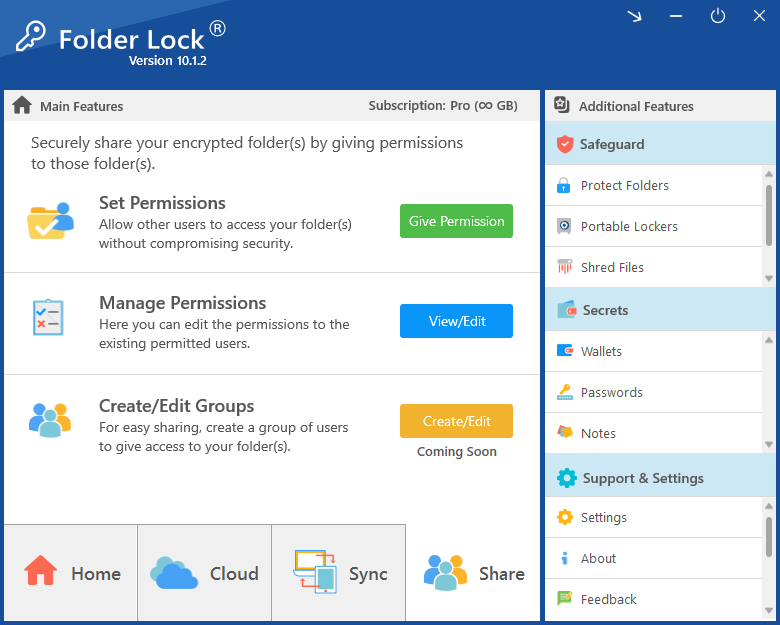
How to protect an Excel workbook using Folder Lock
This workflow is for encrypting the stored workbook in Folder Lock’s Desktop Locker. It does not change which cells can be edited, who can co-author the workbook, or how Excel worksheet protection behaves.
- Install Folder Lock 10 and sign in on your Windows PC.
Use the official NewSoftwares download. The supplied product material identifies the current desktop product for 64-bit Windows 10 and Windows 11. - Open the Desktop Locker from Folder Lock.
From the main screen, open the Desktop Locker so its working location appears in Windows File Explorer. - Move the Excel workbook into the Locker.
Use the Locker as the protected working location. If you copy instead of move, remember that the original file outside the Locker remains an ordinary unprotected copy. - Encrypt the Locker after the workbook is in place.
Return to Folder Lock and use the Locker encryption control. This secures the Locker contents as stored data rather than adding an Excel worksheet password. - Decrypt and open the Locker only when you need to work.
While the Locker is available, open the workbook normally in Excel. Editing restrictions still come from Excel, not from the Locker itself. - Close the workbook and secure the Locker again.
After saving your work, close Excel, re-secure the Locker, and verify that no sensitive duplicate was left in Downloads, Desktop, email attachments, or another ordinary folder.

Excel protection layers in more detail
Sheet protection controls editing actions within the workbook. Use it to protect formulas, layout, and selected input areas. If someone must not be able to read the workbook contents at all, move up to file-level encryption or another approved encrypted-storage layer.
File-level password encryption changes the opening requirement rather than the editing rules inside the workbook. This is where password quality, recovery planning, and secure credential storage become essential.
Locker storage is the cryptographic option in the supplied Folder Lock material and is described as using AES-256. Protect Folders instead uses a Windows access-hiding mechanism to block normal discovery and access. Choose between them according to whether you need encryption or local access restriction.
Folder Lock describes cloud Lockers for Dropbox, Google Drive, and OneDrive. The connected provider remains the storage location while the Locker workflow adds encryption around the stored data. That is different from uploading the workbook to a NewSoftwares-hosted document service.
The protected-sharing workflow is not a universal attachment that any Excel user can open. The recipient needs a registered Folder Lock account and the application, and cloud-based sharing depends on the relevant cloud account. The benefit is that the recipient can use their own account credentials instead of being given the sender’s master password.
Encryption or a worksheet password does not make VBA trustworthy. Macro execution is governed by separate trust and security controls, so treat workbook confidentiality, editing restrictions, and macro safety as different decisions.
Regulated workflows may require approved encryption, retention, auditability, key-management rules, data residency, or centrally controlled sharing. A consumer encryption utility can be useful, but organizational policy remains the controlling requirement.
The supplied product material identifies Folder Lock 10 for 64-bit Windows 10 and Windows 11 and also references iPhone, iPad, and Android apps. It does not establish identical feature behavior on every platform, so configure the Windows Locker workflow on a supported PC and test any mobile or cross-device process before relying on it.

Native Excel protection vs encrypted-container tools
The important distinction is not which product has more features. It is whether the job is controlling what an Excel user can edit, controlling who can open the workbook, or protecting the stored workbook outside Excel.
Excel native controls
Editing rulesNo extra app
Use Protect Sheet, Protect Workbook, file encryption, and Microsoft 365 permissions when the rule should travel with the workbook or collaboration platform.
Folder Lock
Encrypted storageWindows Locker workflow
Use it when a sensitive workbook needs a separate AES-256 storage boundary. Cloud Locker sharing adds application and account requirements for recipients, so it is less suitable than Microsoft 365 permissions for frictionless co-authoring.
OS or enterprise policy
Managed devicesCentral policy
Full-disk encryption, endpoint controls, rights management, and organizational data-protection policy can be a better fit when IT must govern many devices and users centrally.
Folder Lock Pricing: What You Get
For this Excel-focused guide, the paid upgrade only matters if a separate Locker workflow solves a real storage problem. The supplied product material lists a Free option at $0 and a Pro option at $39.95. It does not state the billing cadence beside that price in the captured comparison, so the official store should be checked for current purchase terms.
| Item | Free | Pro | Why it matters for Excel |
|---|---|---|---|
| Listed price | $0 | $39.95 | Do not pay for Pro merely to stop cell edits; Excel already has native controls for that. |
| Locker capacity | 1 GB | Unlimited | Capacity matters when the Locker holds many workbooks, exports, and supporting files. |
| Linked devices | 2 | 5 | Relevant if protected workbook storage is synchronized across several devices. |
| Shared users | Not included in the supplied comparison | Unlimited | Encrypted Folder Lock sharing is a separate workflow from Excel co-authoring. |
| Portable Lockers | Not included | Included | Useful when an encrypted workbook container must travel on removable storage. |
| Protect Folders | Not included | Included | This is the non-encrypting local access-restriction option, not the Locker encryption mode. |
| Mobile apps | Included | Included | Useful for cross-device access, but mobile availability should not be assumed to match every Windows desktop feature. |
| Shredding and history cleanup | Included | Included | Secondary privacy tools for a broader file-handling process. |

More ways Excel protection changes real workflows
Which Excel protection approach fits your situation?
Finance model owner
Protect formula cells, keep assumption inputs editable, and use file-level encryption if the underlying data is confidential.
Team tracker
Use Microsoft 365 edit permissions and co-authoring. Protect only formulas or structure that should not change.
Client delivery
Use view-only sharing for a live file or a password-encrypted copy if the recipient must receive an attachment.
Local archive
Keep the workbook encrypted at rest, using either Excel file encryption or a separate encrypted storage container.

Who should use which option?

Practical themes from long-term Folder Lock use
Several reviews in the supplied research describe years of continued use rather than a one-time trial. The recurring signal is that users value a protection routine they can understand and keep using.
Portable data is a recurring use case. Review material repeatedly points to encrypted portable storage as useful when protected files need to move between computers or travel on removable media.
Ease of operation matters as much as the feature list. Users often describe the interface as straightforward or logically organized, which is important for a security workflow that fails if people avoid using it.
Support is mentioned frequently. Multiple long-term users describe getting help with migration, setup, or operational issues. We treat that as a service-quality signal, not as evidence about cryptographic strength.
These are review themes, not security test results. They can help judge usability and support, but the Excel recommendation on this page is based on the product’s protection model and fit for the workflow, not on star ratings.
Excel file locking and password protection FAQ
In-depth answers for Excel locking, sharing, and recovery

The bottom line
To stop other people editing an Excel workbook, start with the narrowest Excel control that solves the problem: view-only sharing for viewers, Protect Sheet for selected cells and formulas, Protect Workbook for structure, and an opening password when the workbook itself must not open without a credential.
Folder Lock is a different kind of answer. We recommend it only when the Excel file also needs a separate storage boundary on a Windows PC or within a supported Locker workflow. Its encrypted Locker mode is the relevant choice for confidentiality; Protect Folders is a separate local access-restriction feature and should not be mistaken for encryption.
The tradeoffs are real. Encrypted sharing requires Folder Lock on the recipient side, cloud sharing relies on the associated cloud account, and the Free tier has storage and device limits. Those costs are reasonable when encrypted storage is the goal, but unnecessary when Excel’s own collaboration and protection controls already meet the requirement.